Synced lyrics
Tap along with the song to time each line, then jump to any line to hear it.
Sync the lyrics
Syncing times every line in one pass: the song plays, and you tap as each line begins. First attach the song.
- Press Sync lyrics in the player. The song plays from the start, and the caret waits on the first lyric line.
- Press Space as each line starts, or press Tap. Section headers and blank lines are skipped.
- Tapped too early or too late? Backspace takes the last tap back and backs the song up to the line before, so you can tap it again.
- The run ends after the last line. Esc or Stop syncing ends it sooner.
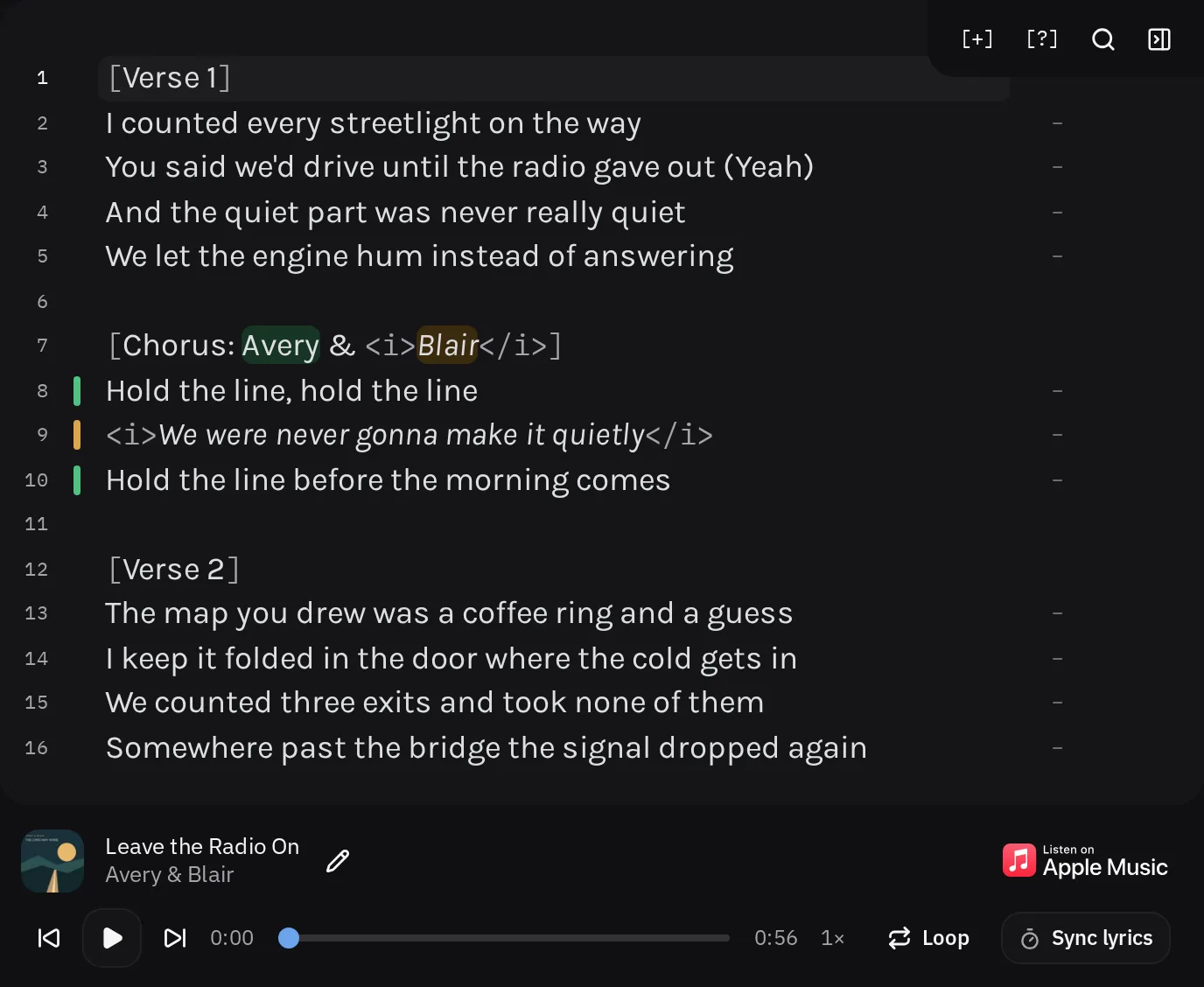
While a run is on, Space taps from anywhere except a text field, a button, or a link. Typing a character ends the run, and the character lands where you typed it. Pausing holds the run: press play to keep tapping.
Fast lines are easier at a slower speed. Pick 0.75× or 0.5× before you start. The times still match the song at full speed.
- A half-timed song picks up at the last timed line, so you hear a line of run-up before the first untimed one. Skip timed lines jumps ahead to the next gap during a run.
- A fully timed song shows Retime lyrics, which starts a fresh pass from the top.
- Selected lines change the button to Sync selection. The run times only those lines and stops after the last one.
Repeated sections you have linked time themselves. When the run reaches a linked copy whose earlier copy you already tapped, one tap on its first line times the rest of the copy from the earlier one's rhythm, as far as the two copies line up, and the song jumps ahead to match. A message says how many lines were timed. Press a line number to time a line by hand instead.
Line times
With audio attached, a column of times runs down the right side of the lyrics. A timed line shows its time. Beside an untimed line, press Anchor this line to time it at the current point in the song, or press CtrlAltMor ControlOptionMon a Mac with the caret on the line.
To correct a time, press Adjust this line's time beside it. The time shows to the hundredth of a second, with buttons that move it 0.25 seconds earlier or later. Delete this line's timing clears it.
The Song tab offers the same for the caret's line under Timing line: type an exact Time in seconds and press Set time, or use Earlier 0.25s, Later 0.25s, Use playback time, and Clear line time. This is the way to time lines with a screen reader, which the time column does not reach.
Times stay with their lines as you edit. Changing a line's words keeps its time, deleting the line deletes it, and joining two lines keeps the earlier time. Typing never writes a time on its own.
As the song plays, the line being sung is highlighted. Once two or more lines are timed, Follow the playing line in the player scrolls the lyrics along with the song.
Jump to a line
Press a timed line's number, or its time, to play from that line. The caret stays where it is, so you can listen to one part while typing in another.
CtrlAltEnteror ControlOptionEnteron a Mac plays from the caret's line, or from the nearest timed line above it.
Back and forward in the player step between timed lines that are within 10 seconds, and move 2 seconds otherwise.
Export the timings
Once lines are timed, the Song tab has a Timed lyrics section. Choose LRC, SRT, or VTT and press Export timings. The file lists the timed lines in time order, without markup a music player cannot read.
Delete line timings… clears every time in the 'scribe after you confirm. The lyrics are untouched.