'Scribes and recovery
Every 'scribe saves itself as you type and comes back after a closed tab or a crash.
Saving happens on its own
A 'scribe saves to this browser a moment after you stop typing. There is no save button and nothing to press before closing the tab.
Everything that belongs to the 'scribe is saved with it: the lyrics, the title, the language, the performers, line timings, section links, findings you ignored, and the audio you attached.
While saving works, the toolbar shows nothing about it. If a save fails, Save failed appears beside the title with a warning mark.
A new 'scribe is saved only once it has something in it. An empty one you abandon leaves nothing behind.
The title field at the top left is the 'scribe's name. Type in it and press Enter to rename; Esc puts the old name back. An untitled 'scribe takes the song's name when you attach audio.
Switching between 'scribes
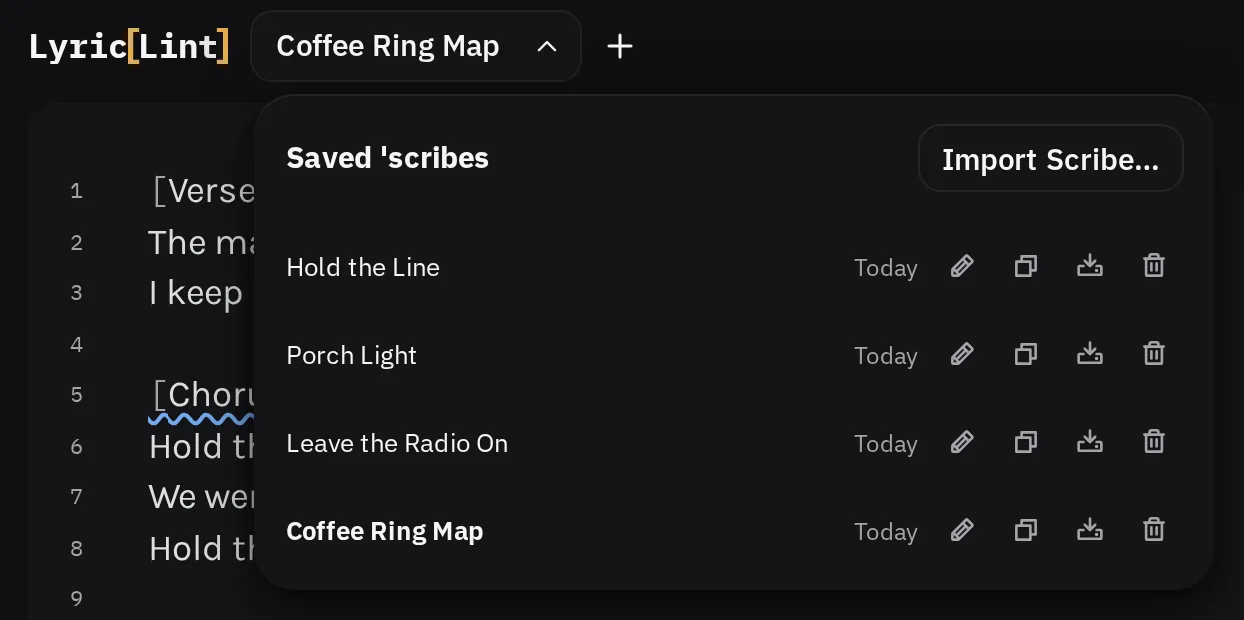
- Press the chevron at the end of the title field. The Saved 'scribes list opens, most recently changed first.
- Press a 'scribe's name to open it.
The small buttons at the end of each row are Rename, Duplicate, Export Scribe (.lls), and Delete. They brighten when you point at or focus the row.
Once you have five or more 'scribes, a search field at the top of the list finds them by title or by any words in the lyrics. When two 'scribes share a title, each row also shows its opening line.
To start another, press New 'scribe (the plus beside the title). On a phone it is in the Document menu.
When the editor is empty, the Review panel lists your Recent 'scribes as well.
Getting work back
Reopen LyricLint after closing the tab, a crash, or a restart, and the 'scribe you were working on is back. Everything saved up to the last pause in your typing is there.
If the workbench is already open in another tab, a second tab says so and waits. Two tabs saving at once would overwrite each other, so the first one keeps the workbench. Close it and the waiting tab takes over on its own.
Within a session, CtrlZor CommandZon a Mac and Undo in the toolbar take back edits, including fixes.
Browsers can clear site storage when the disk runs low. If yours treats LyricLint's storage as best-effort, Preferences then Local data offers Protect storage. A backup file is the durable copy either way.
Keep a backup
Open Preferences and expand Workspace backup. A backup holds every 'scribe and its settings. Assistant chats are left out.
- Where the browser can write to a file you choose (Chrome, for example), press Choose backup file… once. LyricLint then keeps that file up to date as you work.
- Elsewhere, press Download backup to save a copy whenever you like.
- Import backup… adds a backup's 'scribes to this browser. Reconnect local audio files afterward.
To move one 'scribe to another browser or person, use Export Scribe (.lls) on its row, and Import Scribe… at the top of the list on the other side.
Deleting a 'scribe
- Open the Saved 'scribes list.
- Press the trash button on the row. It turns into Delete and Cancel.
- Press Delete to confirm.
Deleting cannot be undone. If you delete the 'scribe you have open, the most recent other one opens in its place.
The list deletes one 'scribe at a time. To remove everything, see Offline and privacy.