Linked sections
Link repeated choruses so a correction in one reaches every copy.
Link repeated sections
A chorus usually comes back with the same words. Linking its copies means a correction typed in one reaches the others, so no copy is left with the old spelling.
- Open the Linking tab in the right panel.
- Under Available to link, find the repeated sections and press Set up link.
- Under Sections to link, check that every copy you want in the group is ticked.
- Press Link sections. The button names how many, such as “Link 3 sections”.
LyricLint also notices repeats on its own. When the same part appears more than once, the suggestion Link these repeats so one correction reaches them all. carries a Manage linking button that opens the same view.
Linking never changes lyrics by itself. Copies that are sung a little differently keep their differences, and only the words they share are tied together.
You can write a chorus once, add empty [Chorus] headers where it repeats, and link
them. The button then reads Fill … and link, and copies the written chorus into
the empty ones.
Edits reach every copy
Type in a linked section and the same change appears in every copy that shares those words. The whole change is one step, so a single undo takes it back everywhere.
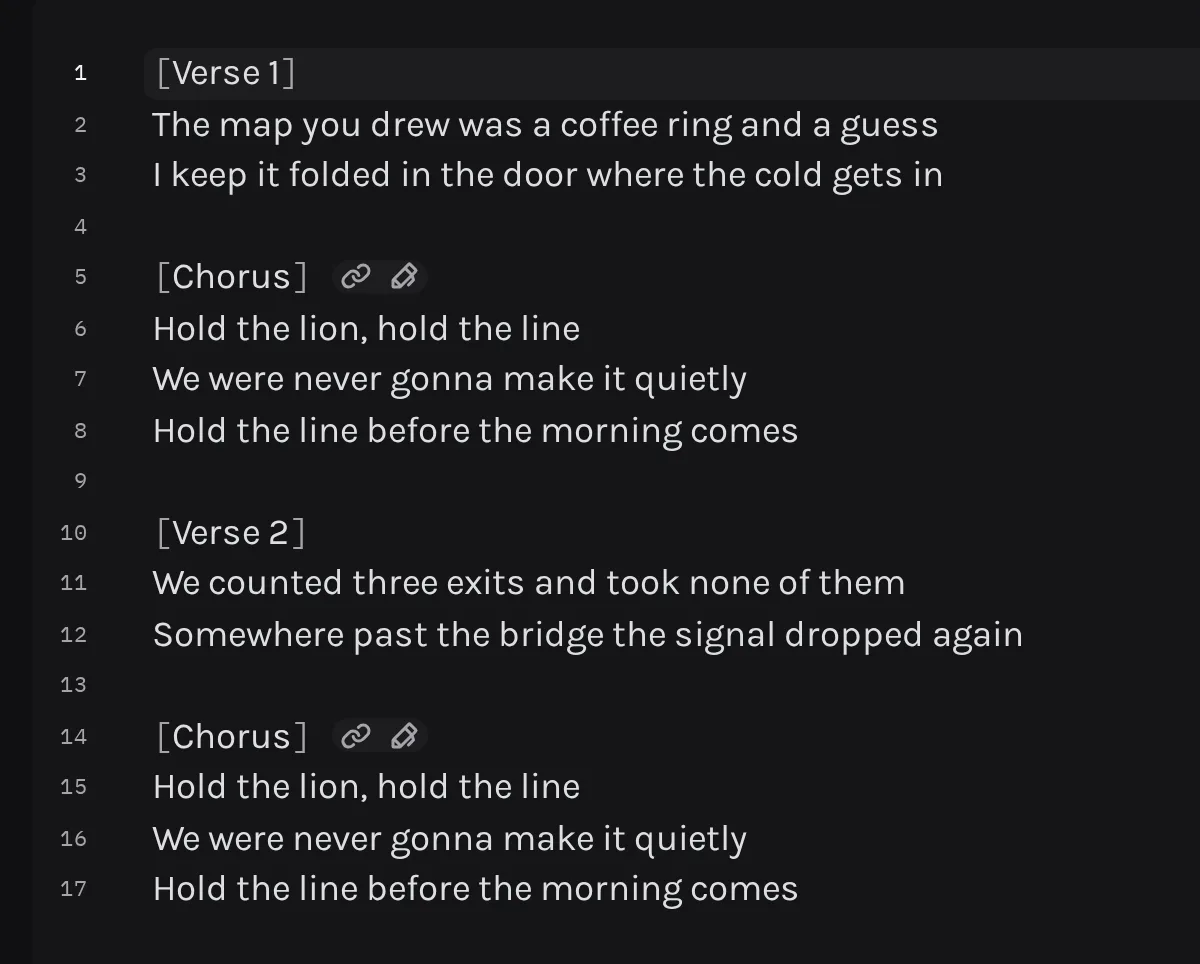
A linked header carries two small buttons after its closing bracket. While the cursor is in that section, a note beside them says where your next edit will land:
- Also edits … names the copies that will change with this one.
- Only this section means the cursor is in words this copy does not share, such as an ad-lib only sung here.
Lyrics that belong to one copy only are marked with a dotted underline. The underline is a decoration and is never copied.
Assigning a performer to shared words applies to the linked copies too. See Performers.
It stays in that chorus. Linking ties the words the copies share and leaves each copy's own words where they are.
That section leaves the group, and its lyrics stay as they are. A group needs at least two sections, so deleting one header of a pair ends the link.
Yes. An edit and the copies it updated are one step, so one undo reverses all of them.
Change one copy only
Sometimes one chorus really is sung differently. To change that copy without touching the others:
- Put the cursor in the linked section you want to change.
- Press CtrlShiftLor CommandShiftLon a Mac, or press the pencil button after the section's header (its name is Edit this section only).
- The header now reads Editing this section only. Everything you type in that section stays there.
- Press CtrlShiftLor CommandShiftLon a Mac or the pencil button again when you are done.
Moving the cursor elsewhere does not turn the mode off. When no audio is attached, Esc also turns it off; with audio attached, Esc controls playback instead.
The words you changed stay separate afterwards, and the rest of the section goes back to updating its linked copies.
The Linking panel
The Linking tab lists Linked sections first, then sections that are Available to link. Each group names its sections, and a Line button beside each one takes you to it in the lyrics.
The button on each group says what it will do:
- Set up link starts a new group.
- Add sections adds new copies to a group that already exists.
- Combine groups joins groups that already exist into one.
- Manage opens an existing group.
The link button after a linked header opens that group here too. In a group, each section is marked ✓ Same lyrics or ≠ Differs.
Choose wording where copies differ
Differences are kept by default, and reviewing them is optional. Press Review differences to see each one, then pick an approach:
- Choose wording per difference keeps or changes individual passages.
- Use one section’s full version makes the selected sections identical.
Nothing changes until you press the button, which then counts your choices, such as “Apply 2 changes”. Cancel clears them.
Unlink or reconnect
To take sections out of a group, open it, untick them, and press Update links. When only the section you started from is left, the button reads Unlink this section. Unlinking keeps every section's lyrics as written.
If copies you edited separately match again, Link matching lyrics again appears in the group. It shows the lyrics it would reconnect, and Link these lyrics again ties them without changing any words.
When you open a group from the link button after its header, the view also has an Edit this section only switch, the same setting as the pencil button.