Performers
Tag who sings each passage without hand-writing the formatting Genius uses.
Build the roster
The roster is the list of people who sing on the song. Each 'scribe has its own, in the Performers tab of the right panel.
- Open the Performers tab.
- Type a name in the Performer name field.
- Press Add.
You rarely need to start from nothing. When you paste lyrics whose headers already name
performers, such as [Verse 1: Avery], those names join the roster on their own.
The roster lists performers in the order they first sing. Performers who are not in the lyrics yet follow, in the order you added them.
If two names look like the same person (a different capitalization, say), they appear under Possible duplicates with a Merge into … button. LyricLint never merges names without asking.
To remove a performer, press the trash button on their row, then Remove to confirm. This takes them off the roster only. Lyrics already formatted for them keep their markup.
Assign a passage
Genius shows who sings what with two pieces of markup: the section header lists the voices, and
each voice's lyrics carry a style. In [Chorus: Avery, <i>Blair</i>], Avery's
lines are plain and Blair's are wrapped in <i>…</i>. LyricLint writes both
for you.
- Select the words with the mouse. The performer picker opens beside the selection.
- Press the performer who sings them. Press more than one for a passage sung together.
- Press Apply.
- Select the words, for example with ShiftRight arrowor ShiftRight arrowon a Mac.
- Press CtrlAltPor ControlOptionPon a Mac to open the performer picker.
- Move between performers with the arrow keys and press Space to pick one. Pick more than one for a passage sung together.
- Press Enter to apply, or Esc to cancel.
- Select the words with the selection handles.
- Press Assign voices in the editor's action bar.
- Press the performer who sings them, then Apply.
More about touch editing is in On a phone.
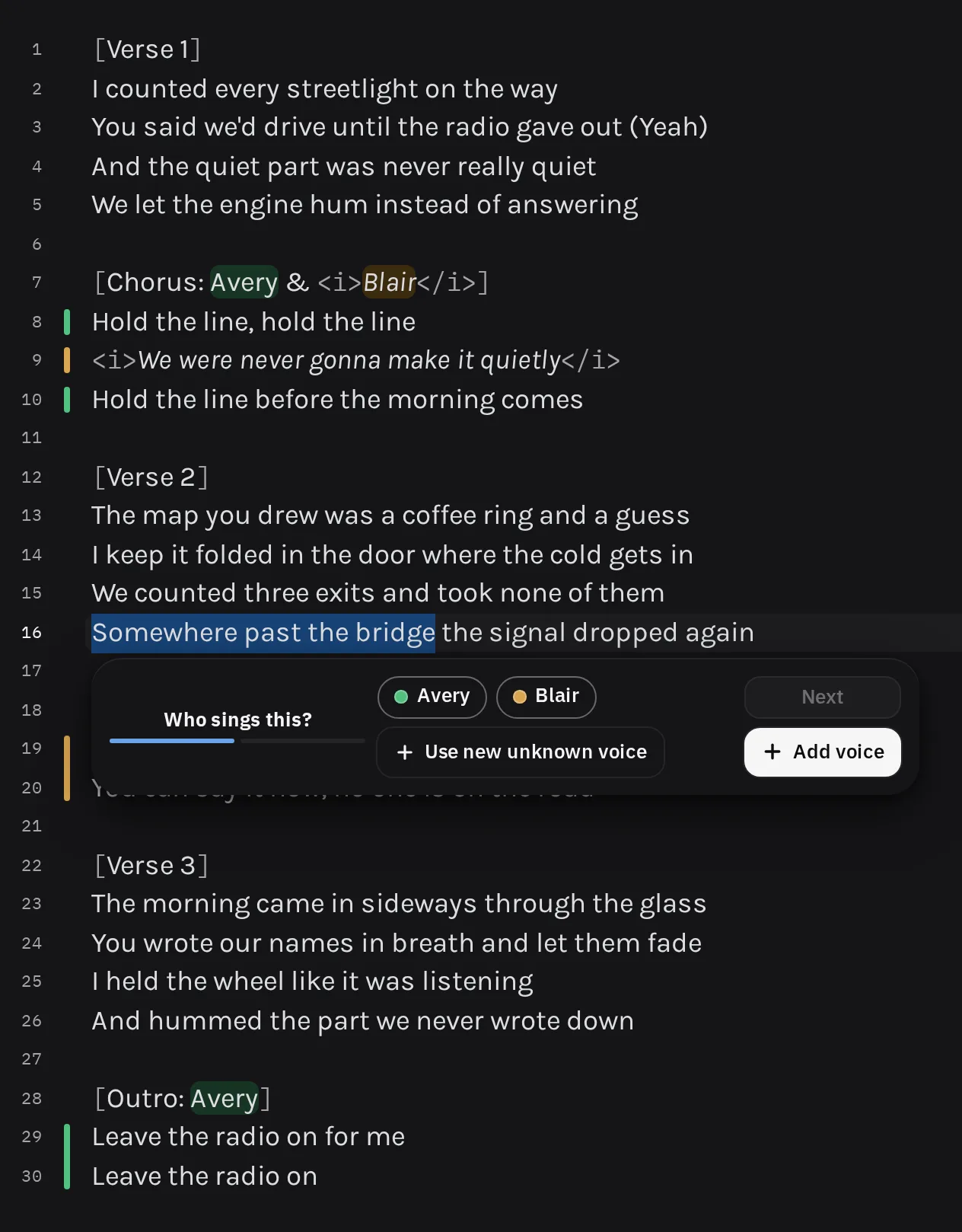
If you assign part of a section that has no performers yet, the picker asks two questions: Who sings this?, then Next and Who sings the rest?. Answer with Apply, or press Skip to name the rest later.
A few more things the picker does:
- Add voice adds a new performer to the roster without leaving the picker. With no performers yet, the name field is already open.
- Unpicking everyone turns the button into Remove formatting, which takes the passage back to plain text.
- Unknown marks a different singer you cannot name yet. It writes the style without a name in the header, so you can name the voice later.
Each assignment is one step you can undo. The selection must sit inside one section that has a
header, and the header gets updated in the same step. A section can hold four voices, because
Genius has four styles: plain, <i>, <b>, and <i><b>. A fifth is refused rather than rewriting the others.
Some findings about performers carry an Assign section performers button that opens the picker for the right section. The guide's section headers topic covers the convention in full.
Rename a performer
- In the Performers tab, press the performer's name.
- Edit the name.
- Press Save, or Cancel to keep the old one.
Every header that names them changes in one step you can undo.
You can also rename someone by editing their name inside any header. The other headers and the roster follow as you type.
See who sings each line
A coloured bar in the margin beside each lyric line shows its main performer. Point at the bar to see the name.
When a line has more than one voice, each voice's words get a soft tint in that performer's colour. Names in headers wear the same colours, so the header works as a key.
Colour is only a visual aid. The styles and header names say who sings, and a screen reader announces the performer when the cursor enters their passage.
For an overview of the whole song, open Performers by section at the foot of the Performers tab. Sections with the same arrangement are grouped together.
None of this changes the lyrics. What you copy is only the Genius markup. See Copy and paste.