Preferences
Turn grammar checking on or off, back up your workspace, and manage what this browser stores.
Open the Preferences tab in the panel beside the editor. On a phone it is under Tools. Settings apply to the whole workbench, not to one 'scribe.
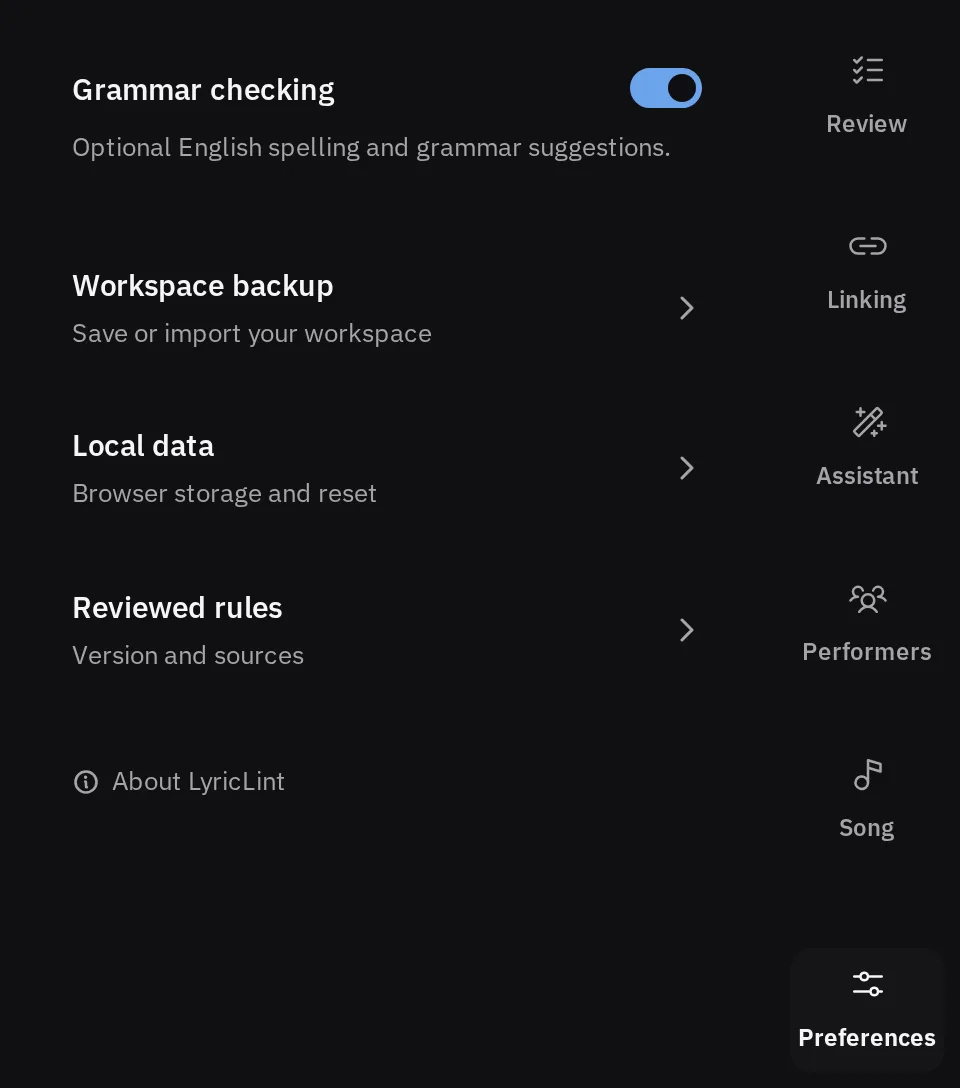
Grammar checking
The switch turns optional English spelling and grammar suggestions on or off. It is on until you turn it off. The suggestions come from a grammar checker that runs in your browser; see Findings and fixes.
The setting appears only while the 'scribe's language is English, because the checker reads only English. Your choice is kept when you switch to a 'scribe in another language and back.
Workspace backup
Expand Workspace backup to save every 'scribe and its settings to a file, or to import one. Rules assistant conversations are not included, and neither are local audio files, so reconnect those after an import. Keep a backup explains the buttons.
If an automatic backup fails, the tab says so even while the section is closed.
Local data
Expand Local data to see how safely this browser is keeping your 'scribes. Where the browser may clear its storage when the disk runs low, Protect storage asks it not to.
Reset LyricLint… deletes every 'scribe and conversation in this browser and resets all settings, after you confirm. See Deleting everything.
Reviewed rules
Expand Reviewed rules to see which version of LyricLint's rules you are running: its version, when it was published, and how many rules it holds. Below that are links to every reviewed Genius source the rules cite. The full list of rules is on the rules page.
About LyricLint, at the foot of the tab, opens the LyricLint home page.