On a phone
Write, review, and play the song on a phone, one task at a time.
One task at a time
On a phone, LyricLint gives each task the whole screen. Three buttons at the bottom switch between them:
- Write shows the lyrics. LyricLint opens here.
- Review lists the findings, with their count on the button. See Findings and fixes.
- Tools holds Linking, Performers, Song, and Preferences, and the rules assistant where it is available.
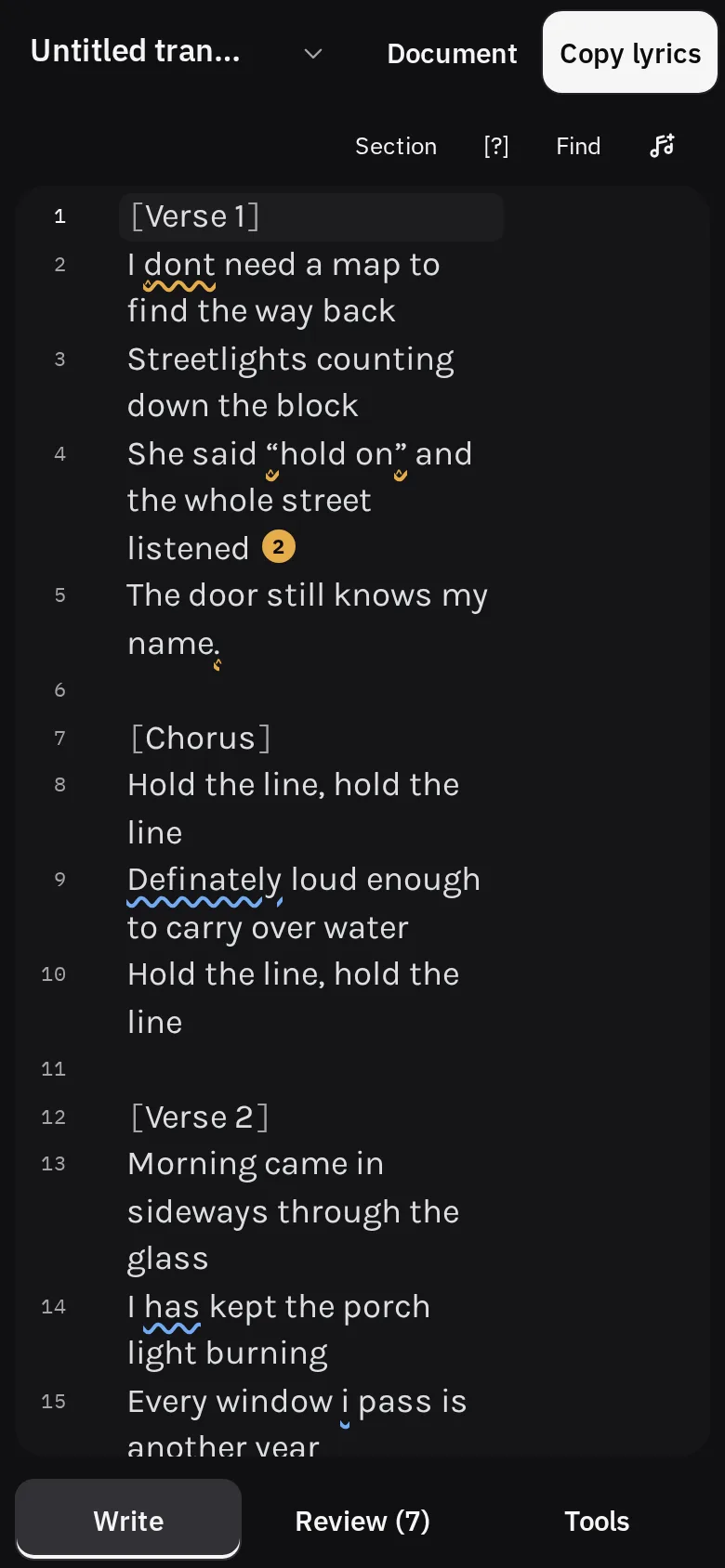
Switching views keeps your place: the caret, the scroll position, and undo all survive. Portrait and landscape both work, and pinch zoom is left on.
In Review, tap a finding to see its lyrics above the finding and its fix. All findings takes you back to the list. Tapping an underline in the lyrics opens that finding in Review too.
The toolbar keeps the 'scribe's name and Copy lyrics in view. Its other commands (New 'scribe, Undo, Redo, the language, and Compare) are behind Document.
While the on-screen keyboard is up, the view buttons hide to give the lyrics the room. They come back when you close the keyboard.
This layout applies to touch screens up to about 1,100 pixels wide, which includes most tablets held upright. A narrow desktop window driven by a mouse keeps the desktop layout.
Selecting and assigning by touch
Above the lyrics, a row of named buttons replaces the desktop's keyboard shortcuts:
- Section inserts a section header.
- [?] marks lyrics you cannot make out.
- Find opens find and replace.
- The music note attaches or changes the audio.
To tag a performer:
- Select the lines with your phone's own selection handles.
- When the selection covers lyric lines inside one section with a header, Assign voices appears in the row. Tap it.
- Pick the performers in the picker that opens.
Selecting never opens the picker by itself, so you can keep adjusting or editing the selection.
See Performers for building the roster and Linked sections for the Linking tool.
Audio on a phone
The player stays at the bottom of the screen in every view, so you can switch between writing and reviewing without stopping the song. A YouTube video sits above the player, or beside the lyrics in landscape.
On narrow screens, Audio in the player opens the speed menu, Loop, and Sync lyrics. While you sync, Tap takes the place of the Space key, and it does not open the keyboard. See Synced lyrics.