Playing the song
Attach the track you are transcribing and control it without leaving the lyrics.
Attach audio
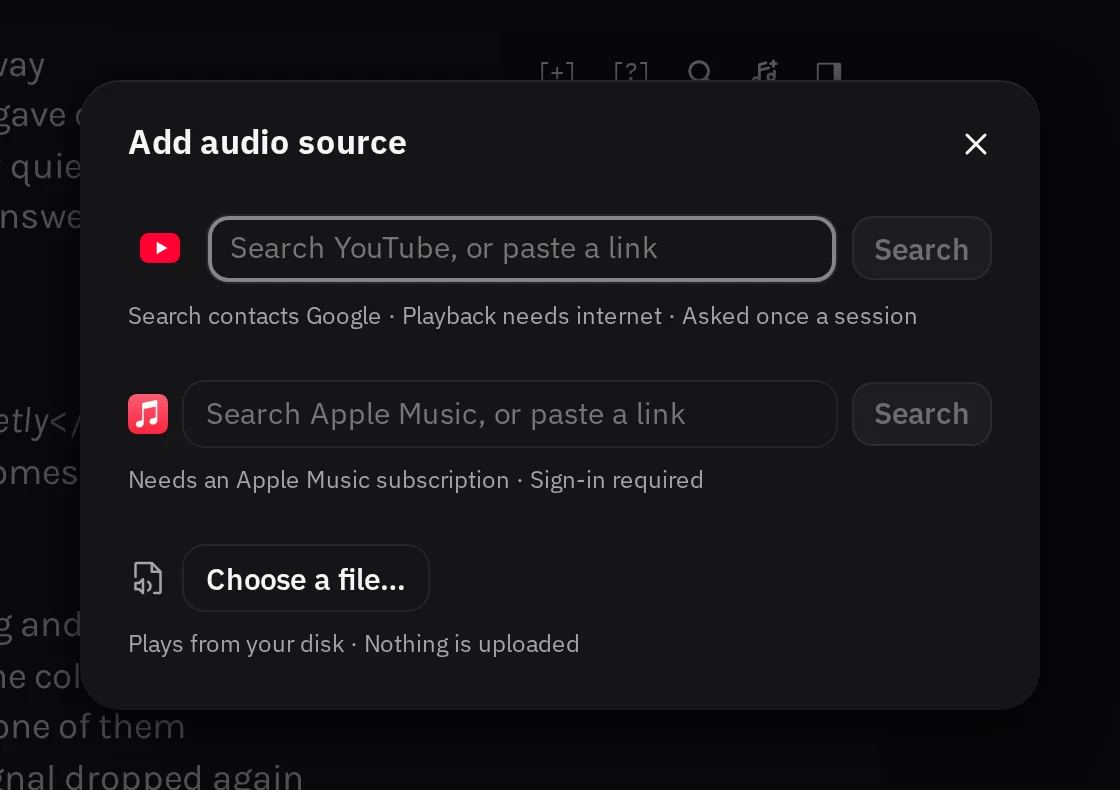
Press the music note at the top right of the editor. Its tooltip reads Add audio source, and it opens a dialog with every source this copy of LyricLint offers:
- Choose a file… plays an audio file from your computer.
- The YouTube field takes a video link, or a search where the field says so. Apple Music and Spotify have their own search fields when they are available. See YouTube, Apple Music, and Spotify.
You can also drop an audio file straight onto the lyrics.
The song belongs to the 'scribe. Each 'scribe remembers its own audio and the point where you stopped, and switching 'scribes switches the song. If the 'scribe still has its default name, the song's title becomes its name.
To change or remove the song, press the note again (now Change audio source). The dialog shows the current song first, with a minus button that detaches it.
Pause, replay, and step
The player sits under the editor: back, play, forward, the elapsed time, and a seek bar. Your hands can stay on the keyboard, because the Escape key drives it:
- Esc plays and pauses.
- ShiftEscor ShiftEscon a Mac goes back.
- AltEscor OptionEscon a Mac goes forward.
These work while you type in the lyrics, and a fumbled press never types a character. When something else is open, such as a finding's popover or the find bar, the first Escape closes that instead.
Back and forward jump to the previous or next timed line when one is within 10 seconds, and move 2 seconds otherwise. Hover either button to see which it will do. Once lines are timed, see Synced lyrics.
Resuming after a pause backs up 2 seconds, so you hear the words again before the gap you were typing into. After you drag the seek bar, playback starts exactly where you put it.
The speed menu beside the seek bar slows the song to 0.75× or 0.5×, or speeds it up to 1.5×. It lists only the speeds the current source can play. A local file keeps its pitch when slowed.
Function keys, the J K L keys, and your keyboard's media keys work too. They are all on Keyboard shortcuts.
Repeat a passage
- Play or seek to where the passage starts, and press Loop.
- Play or seek past where it ends, and press End here.
- The button now shows the passage's start and end times, and playback repeats it. Press the button again to stop repeating.
Before you press End here, the Cancel loop button next to it drops the start. Pausing keeps the loop. Seeking outside the passage, changing the audio, or starting to sync the lyrics clears it.
Local files
LyricLint accepts any audio file your browser can play, such as MP3, M4A, AAC, WAV, FLAC, Ogg, and Opus. A local file plays offline.
When you come back to a 'scribe, its file returns at the point where you stopped:
- In Chrome and Edge, the 'scribe keeps a handle to the file. While the browser still allows access, the song comes back on its own. Otherwise the player shows Reconnect audio: press it, or Esc, and allow access.
- Firefox and Safari cannot keep that handle. Press Reconnect audio and choose the file again.
If you moved, renamed, or deleted the file since, LyricLint says it could not be reopened. Attach it again from the audio dialog. A workspace backup brings back your 'scribes but not their audio files, so reconnect those after importing one.