Findings and fixes
Every finding names the source behind it, and most carry a fix you can preview.
Read a finding
LyricLint checks the lyrics as you type and lists what it finds in the Review tab of the right panel. The same findings are underlined in the lyrics.
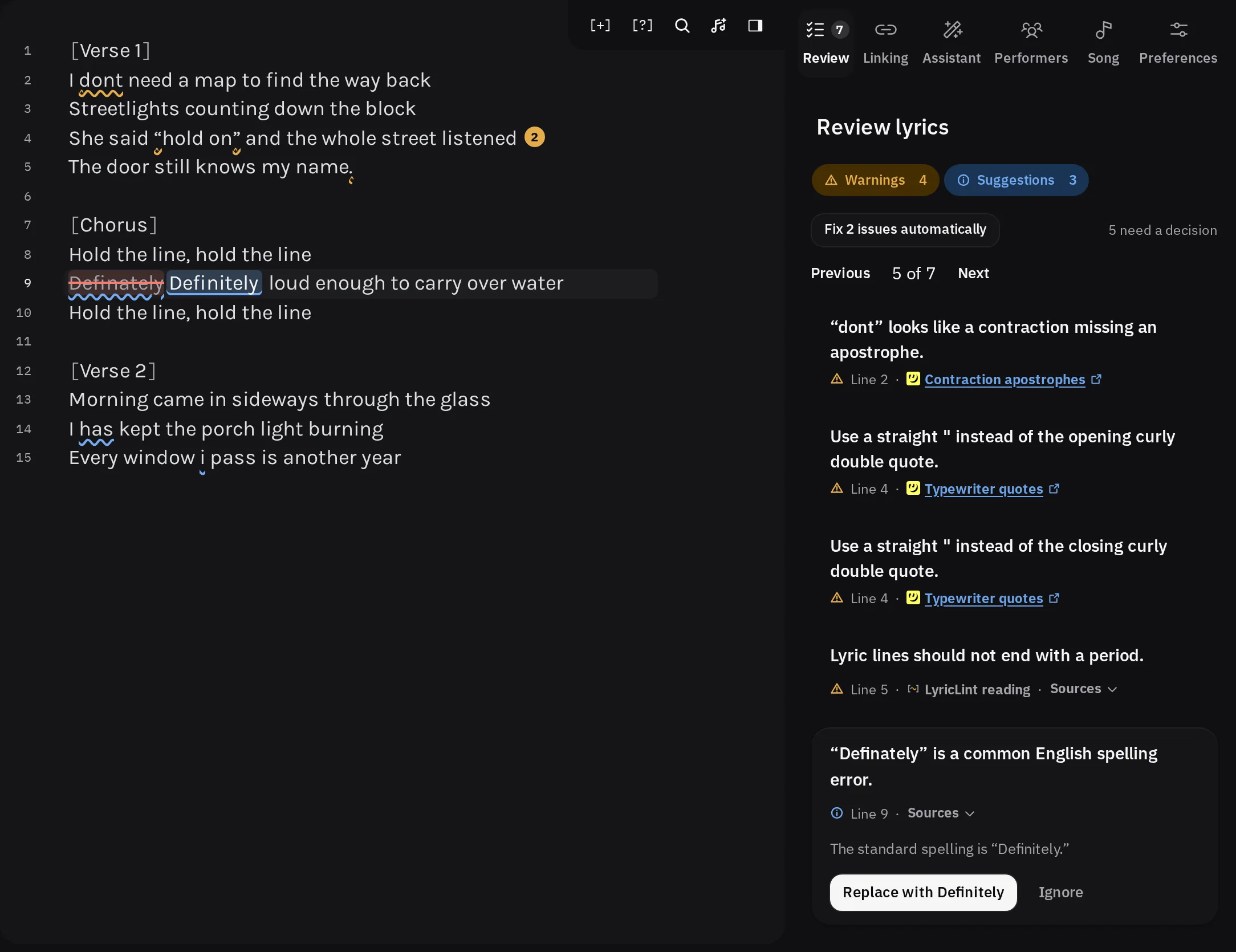
Each finding starts with one line of facts:
- A mark for how serious it is (see the table below).
- The line it is on.
- The source it relies on, as a link. Point at the link or focus it to see which part of the page is cited and when LyricLint last checked it. When a finding cites several sources, they fold behind Sources.
Some findings also say LyricLint reading. That marks a check that is LyricLint's own interpretation of the sources cited after it, rather than something a source states outright.
| Severity | Mark | What it means |
|---|---|---|
| Error | Cross in a circle | The markup is broken, such as an unclosed bracket or a performer tag Genius does not support. |
| Warning | Exclamation mark in a triangle | The lyrics depart from a reviewed Genius convention. |
| Suggestion | i in a circle | A judgment call or readability preference. Worth a look, and often fine to leave. |
| Manual review | Check mark in a circle | LyricLint cannot tell whether this is right, such as a custom section header. Check it yourself. |
The chips above the list (Errors, Warnings, Suggestions, Manual review) show how many of each there are. Press a chip to hide or show that kind.
Press a finding to open it and read the explanation. In the lyrics, point at an underline to see the same finding in a popover. When a line has several findings, a count at the end of the line lists them.
To move between findings from the keyboard:
- In the lyrics, F2 goes to the next finding and ShiftF2or ShiftF2on a Mac to the previous one.
- In the Review tab, use Previous and Next, or AltShiftUp arrowor OptionShiftUp arrowon a Mac and AltShiftDown arrowor OptionShiftDown arrowon a Mac.
Each of LyricLint's own checks has a page in the transcription guide with examples and the reasoning behind it.
Apply a fix
When you open a finding that has a fix, the lyrics show the fix as a preview: struck-out text for what goes, and new text for what arrives. Nothing changes until you choose.
- Open the finding in the Review tab, or point at its underline.
- Read the preview. The fix button is labelled with the change itself, such as Replace with I'ma.
- Press the button.
The fix is one step you can undo, and the next finding opens so you can keep going. When a finding offers more than one fix, the first is the recommended one. Point at or focus any of them to preview it.
From the keyboard, Ctrl.or Command.on a Mac opens the nearest finding that has a fix, with its fix button focused. Press Ctrl.or Command.on a Mac again to apply it.
Some findings need a decision rather than a replacement, so they carry a different button:
- Choose header opens the section header picker.
- Assign section performers opens the performer picker.
- Manage linking opens the Linking panel.
- Set language to … changes the 'scribe's lyric language.
A finding with no button explains what to change, and leaves the change to you.
Fix every occurrence
When the same fix applies in several places, a Fix all button appears beside it with the count, such as Fix all 3. It applies that exact change, from that check, everywhere it appears, as one step you can undo.
At the top of the Review tab, Fix … issues automatically applies every such fix in the list at once. The note beside it says how many findings still need a decision.
Both use only fixes that were reviewed as safe to apply without looking at each one. Fixes that need your judgment are applied one at a time. Findings you have hidden with the chips are left alone.
Ignore a finding
If a finding is wrong for this song, press Ignore. It disappears for this 'scribe only, and a message offers Undo.
An ignored finding stays hidden even if you delete the text and type it again later. Other 'scribes still show it.
Some findings ask a question instead, and answering it hides the finding in the same way:
- It's correct, for a custom section header you meant to use.
- It really is unintelligible, for an unknown-lyric marker.
- The performer is unknown, for a styled voice you cannot name.
To bring one back, open the ignored list at the foot of the Review tab (it reads, for example, “2 diagnostics ignored”). Each entry shows where it is, and Restore returns it to the list.
Grammar and spelling
For English lyrics, LyricLint also checks spelling and grammar with Harper, a proofreader that runs in your browser. Your lyrics are not sent anywhere for this.
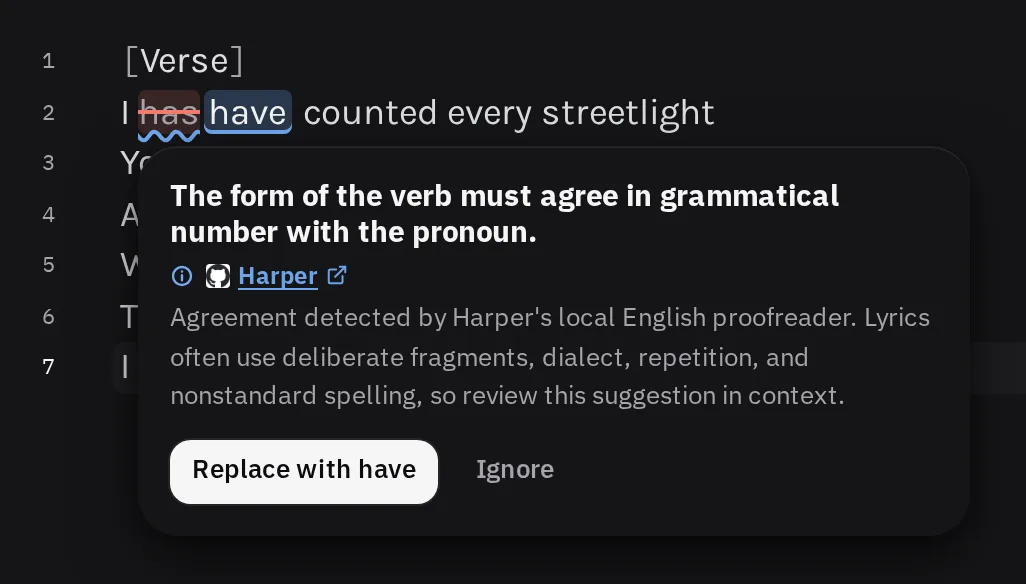
Lyrics bend grammar on purpose, so every Harper finding is a Suggestion and cites Harper as its source. Harper findings are listed after LyricLint's own, and their fixes are applied one at a time, never in bulk.
Harper is tuned for lyrics:
- Names on the roster count as known words.
- Dropped endings written with an apostrophe, such as
runnin', are left alone. - Checks that would contradict Genius conventions, such as censoring words or regional spellings, are off.
- Where one of LyricLint's own checks covers the same words, only that finding shows.
To turn it off, switch off Grammar checking in Preferences. The switch appears while the lyric language is English.