Your first 'scribe
Paste a transcription, read what LyricLint finds, fix it, and copy it back to Genius.
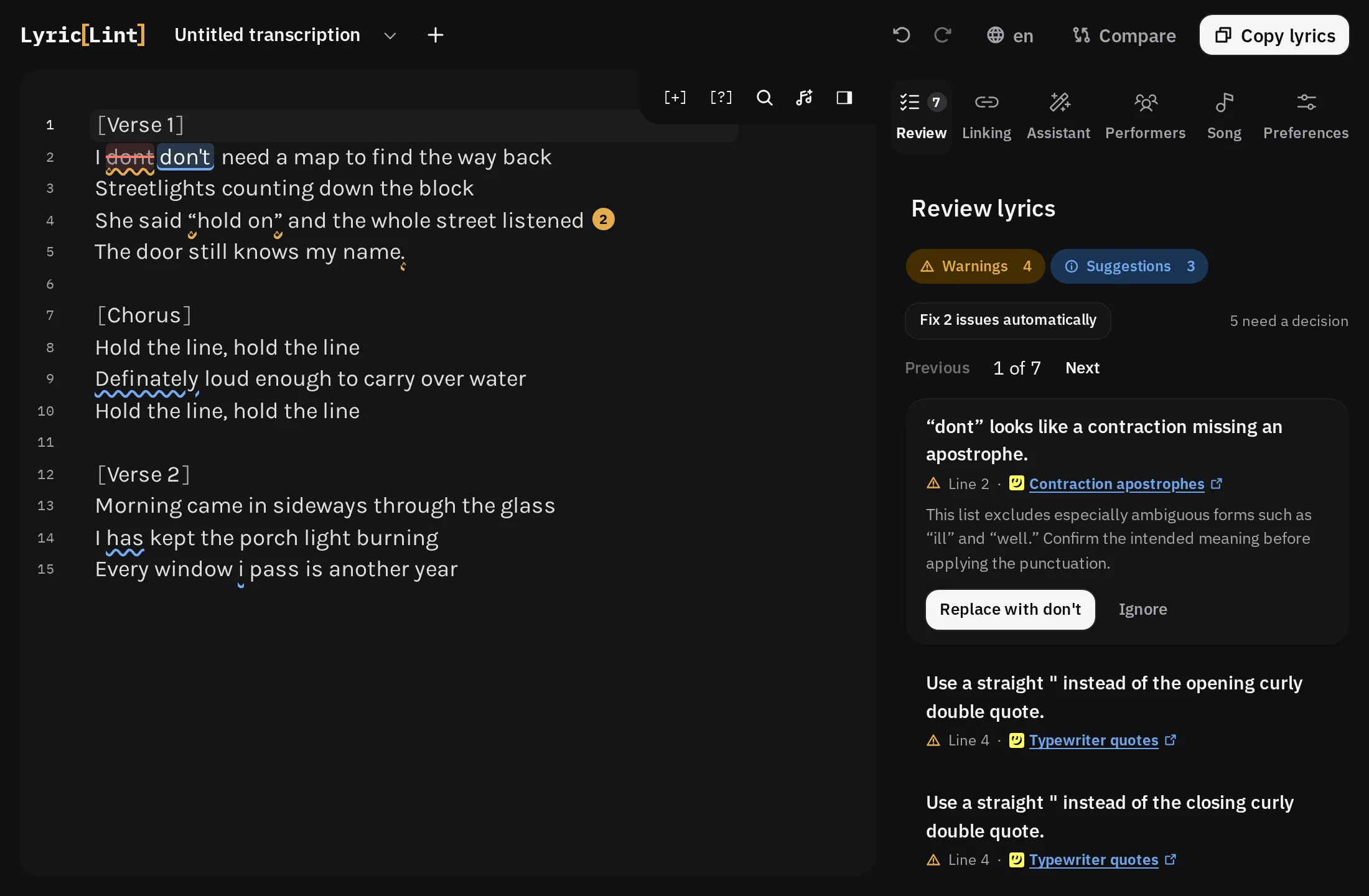
Paste or type the lyrics
Open the workbench. A new 'scribe starts empty, with Paste or type your lyrics here in the editor.
- Copy the transcription from wherever it is now.
- Press Paste lyrics in the toolbar. If the browser does not allow LyricLint to read the clipboard, the caret moves into the editor and you paste with CtrlVor CommandVon a Mac instead.
You can also type straight into the editor. There is no account and nothing to set up.
To look around before you have lyrics of your own, press Load a sample 'scribe in the Review panel.
The toolbar shows the lyric language. If the lyrics are in another language, a finding offers to switch it for you, since section headers and several checks depend on it.
Read the findings
LyricLint checks the lyrics as you write. Each problem is underlined in the editor and listed as a finding in the Review panel beside it.
A finding says what is wrong, which line it is on, and which Genius source it rests on. Open Sources on a finding to see them.
Use Previous and Next at the top of the panel, or AltShiftUp arrowor OptionShiftUp arrowon a Mac and AltShiftDown arrowor OptionShiftDown arrowon a Mac, to step through them. When the panel reads No issues found, every enabled rule passes.
Some findings are judgment calls rather than errors, and they say so. You decide those. The findings page explains severities, sources, and ignoring.
Fix what is wrong
Most findings carry a fix. Its button names the change, such as Replace with I'ma.
- Point at the fix button, or focus it, to preview the change in the lyrics.
- Press it to apply the change.
- If the same problem appears elsewhere, Fix all followed by a count applies it everywhere at once.
From the keyboard, Ctrl.or Command.on a Mac selects the nearest finding that has a fix, and pressing it again applies the fix.
A fix is an ordinary edit. CtrlZor CommandZon a Mac or Undo in the toolbar takes it back. When a finding is wrong about your lyrics, press Ignore instead.
Copy it back to Genius
- Press Copy lyrics in the toolbar. The button reads Lyrics copied for a moment when the lyrics are on the clipboard.
- Open the song's lyrics editor on Genius and paste over the old text.
What you copy is exactly the text in the editor, including any literal markup such as <i> for performers. See Copy and paste for the details, and for Compare, which shows what will change on the page
before you paste.
Your 'scribe has been saving itself the whole time. 'Scribes and recovery covers where it went and how to get back to it.